Tutorial
Seedance 2.0 Prompt Guide
The Seedance 2.0 series natively supports joint audio-video generation, with outstanding semantic understanding and multimodal interaction capabilities. This tutorial walks you through how to write prompts for Seedance 2.0 and shares practical techniques, so you can generate high-quality videos that match your vision more efficiently.
Basic Formula
Seedance 2.0 models can reference video, image, and audio assets at the same time, precisely locking onto character appearance, motion effects, visual style, voice timbre, and more. This dramatically lowers the barrier to prompt writing: with a few simple base formulas, you can guide the model to exploit your multimodal assets and quickly generate videos that meet specific needs.
Reference-to-video work breaks down into three task types: multimodal reference, video editing, and video extension. Pick the base formula that matches your task type.
Multimodal Reference
Extract selected elements from your assets (such as a subject, style, scene, or sound) and generate a brand-new video.
- Best for: motion transfer, subject reuse, mood borrowing, and similar tasks
- Recommended patterns:
- Image reference: Referencing the
<Subject N>in<Image N>, generate... - Video reference: Referencing the
<motion / camera work / style / sound>in<Video N>, generate... - Audio reference: Referencing the voice timbre in
<Audio N>, generate...
Editing Videos
Make local or global modifications on top of an existing video. Anything you do not mention stays unchanged by default.
- Best for: local replacement, subject removal, attribute changes, and similar tasks
- Recommended patterns:
- Add an element: clearly describe the
<element traits>+<when it appears>+<where it appears> - Modify an element: Strictly edit
<Video N>, changing the<original trait>to the<new trait> - Delete an element: name the element to remove; for elements that should stay unchanged, explicitly calling them out in the prompt improves results
Extending Videos
Continue the original video along the time axis, keeping the audio-visual style, subjects, and narrative consistent.
- Best for: continuing a storyline, extending an action, filling in missing segments
- Recommended patterns:
- Extend a video: Extend
<Video N>forward/backward, generating... - Track completion:
<Video 1>+<transition description>+ then<Video 2>+<transition description>+ then<Video 3>
Note
For editing / extension tasks, refer to the video directly as <Video N>. Do not write “referencing <Video N>”, or the task may be misclassified as a reference task.
Combined Tasks
The three task types above can also be combined.
- Best for: referencing one asset while editing another
- Recommended pattern: Referencing the
[reference dimension]of<Image/Video N>, strictly edit<Video X>,[specific edits]
Prompt Examples
Prompt examples for different scenarios with Seedance 2.0 — helping you master multimodal reference control and text generation. Pick the pattern closest to your task and adapt it.
Text Generation
Slogans
Prompt template:
「text content」+「when it appears」+「where it appears」+「how it enters」,「text traits (color, style)」
Tip
Seedance 2.0 matches a suitable text style to the context on its own. If you have strict requirements on how the text looks, see “Multi-Image Reference → Logo reference” below.
Reference Materials
Result
Prompt
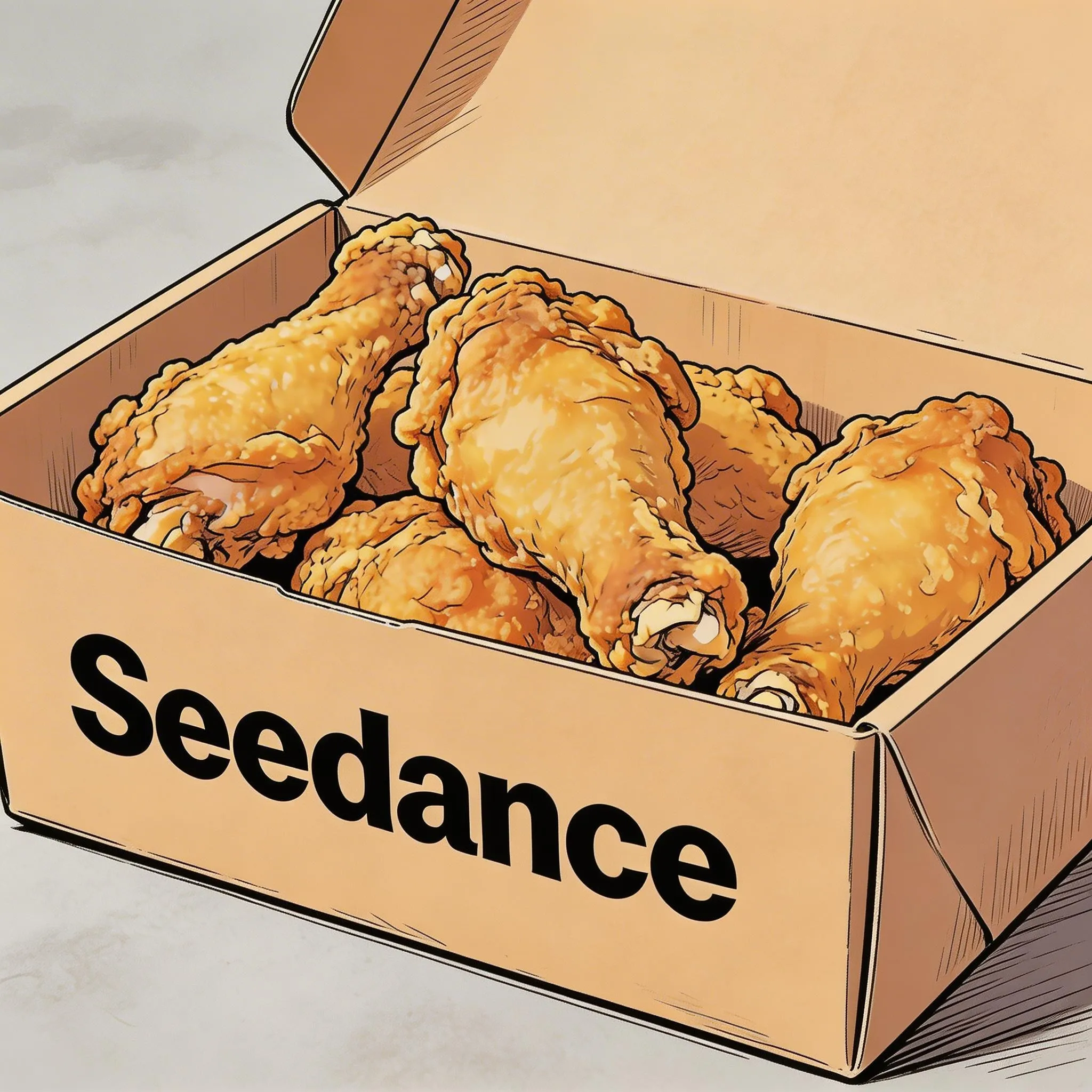
Hand-drawn comic style. Three people sit together eating the fried chicken from Image 1, in a warm, friendly mood. The frame then gradually blurs, and the text “快乐尽在 Seedance” (“Joy is all in Seedance”) appears in the middle of the frame.
Subtitles
Prompt template:
Subtitles appear at the bottom of the frame, reading “…”, perfectly synced to the audio.
Result
Reference Materials

Prompt
Generate a video with a voiceover. A deep, calm male voice says: “In the vastness of the cosmos, our world is but a fleeting moment. And yet, within it, life flourishes against all odds.” The scene transitions slowly from night to dawn — stars fading as the sun rises from behind the mountains. Subtitles appear at the bottom of the frame following the narration.
Result
Reference Materials
Prompt
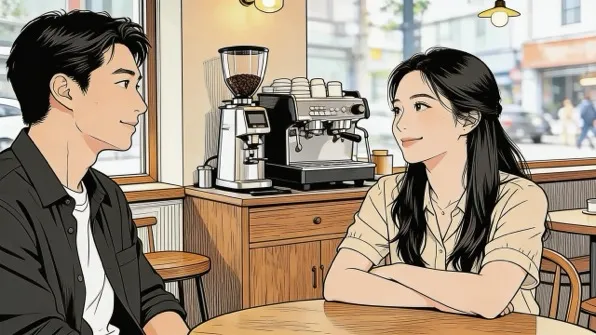
The two people in the image chat in an office. The woman speaks first: “你每次卡点到,是不是很享受这种刚刚好的感觉?” (“You always arrive right on the dot — do you enjoy cutting it that close?”) The man replies with a smile: “我有我的节奏” (“I have my own rhythm”). The conversation feels casual and natural, with matching dialogue subtitles at the bottom of the frame.
Speech Bubbles
Prompt template:
「Character」says: “…”; as they speak, a bubble appears next to them with the line written inside.
Result
Reference Materials
Prompt
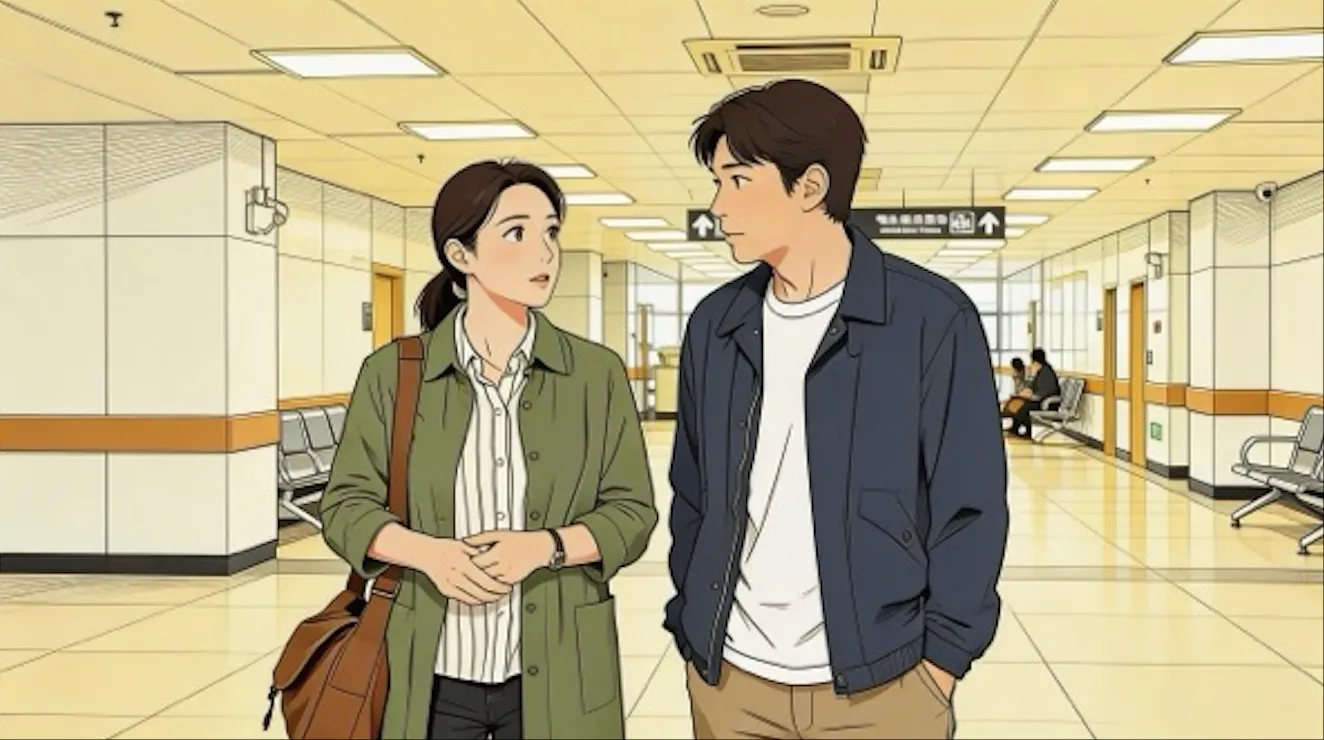
The two people in Image 1, wearing sportswear, run on the school track. The girl looks at the boy and says with a confident smile: “We can definitely do it!” Cut to a close-up of the boy, who answers hesitantly: “Are you sure?” Cut back to a medium close-up of the girl, who says brightly: “Yes!” — upbeat and firm. A bubble appears next to whoever is speaking, with the matching line inside.
Result
Reference Materials
Prompt
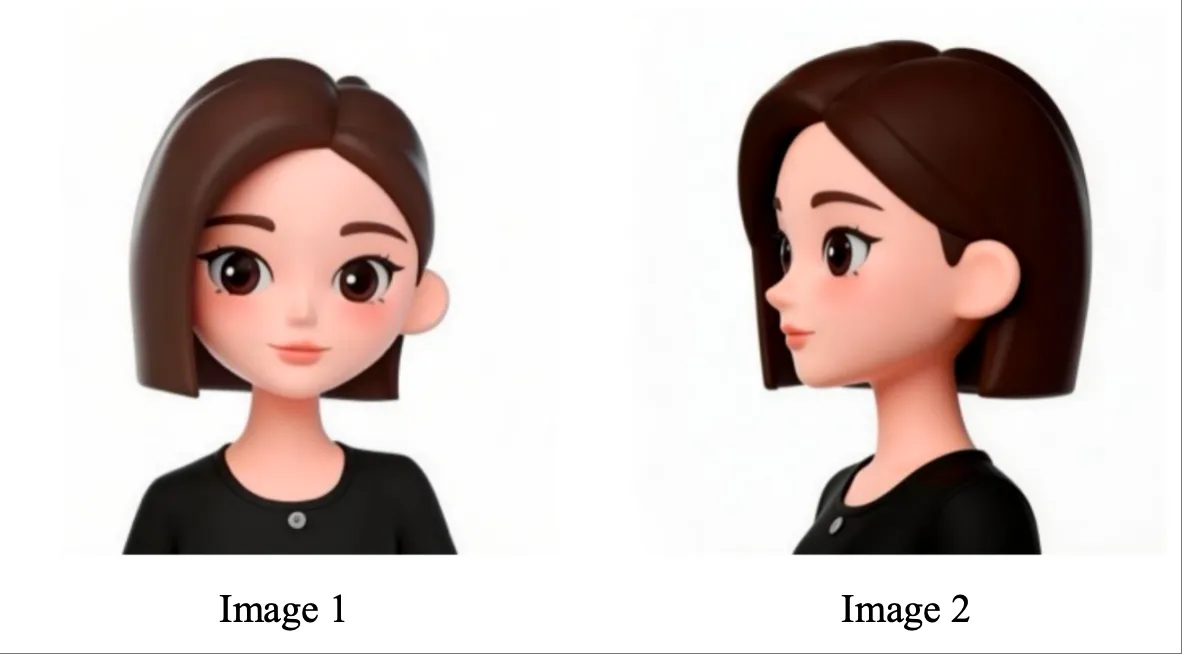
Referencing the girl in Image 1 and Image 2: in a strawberry field, she picks a strawberry, takes a bite, and says with a smile: “This is the real deal!” A bubble appears around her with the line written inside.
Image Reference
Seedance 2.0 supports multi-view subject references as well as multi-image references such as scene images and storyboards.
If the order of images matters, upload them in order and refer to them precisely in the prompt as Image 1, Image 2, … Image n.
Multi-View Subject Reference
Just make the reference target clear — the model responds to instructions including (but not limited to) these examples. Products:
Consumer electronics
Result
Reference Materials
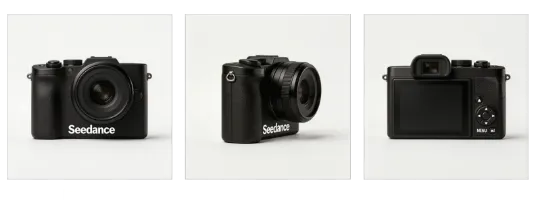
Prompt
Extract the camera from Image 1, Image 2, and Image 3, and swap the background to white. The camera sits on a white table; the lens focuses on it in close-up, then rotates slowly around it as the subject, clearly showing its front, sides, and back.
Home goods
Result
Reference Materials
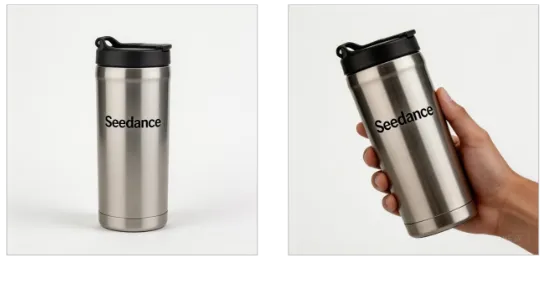
Prompt
Against a warm-toned home scene, a medium shot presents the thermos from the reference images. The camera pushes in smoothly to a close-up; a hand enters the frame naturally, grips the body of the thermos and lifts it, with the camera following the hand's slight rotating motion as it shows the product.
Characters:
Reference Materials
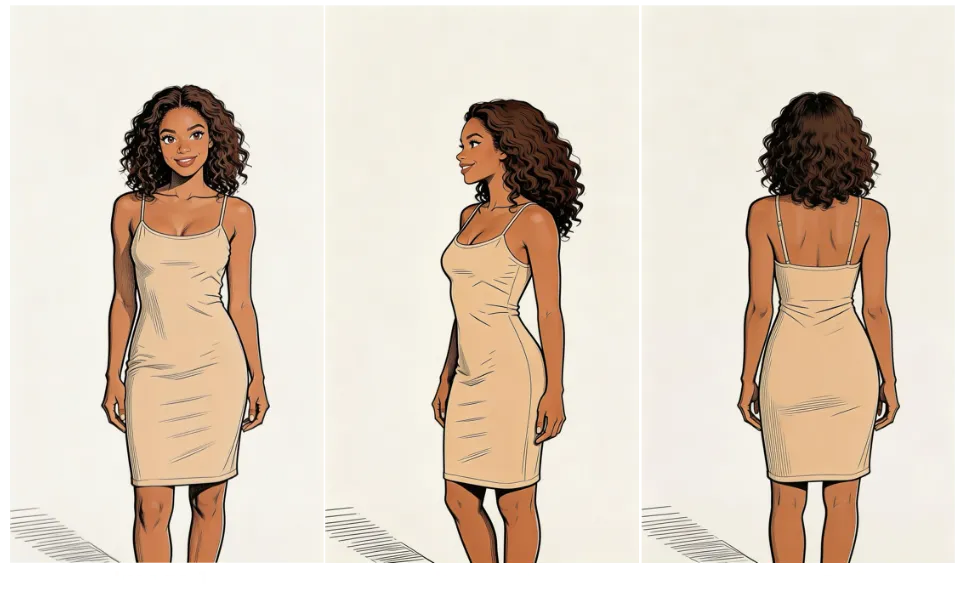
Result
Prompt
Referencing the woman in Image 1, Image 2, and Image 3, generate a scene of her eating cake in a coffee shop.
Multi-Image Reference
Logo reference
Result
Reference Materials
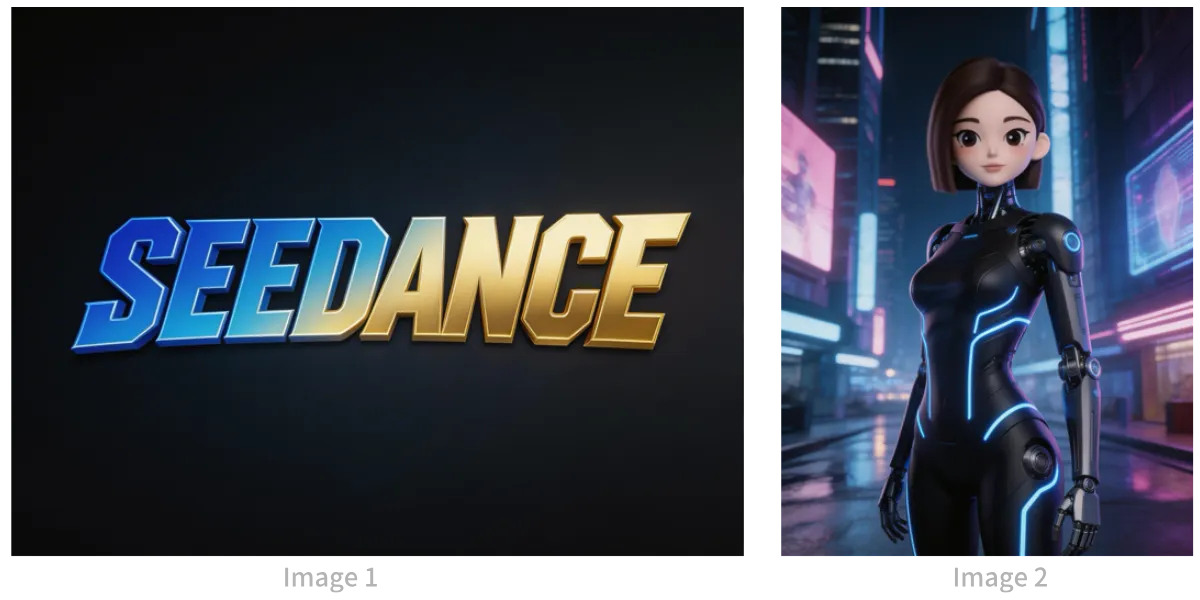
Prompt
The backdrop is a neon-lit aerial walkway in a future city, aircraft weaving between holographic ads. Referencing the girl in Image 2: first a medium shot of her releasing a silver hover-lantern carrying a holographic projection, then the camera pulls back to reveal a sky full of floating lanterns. The frame gradually blurs, and the logo from Image 1 appears. Overall style: 3D cyberpunk sci-fi animation.
Multi-subject reference
Result
Reference Materials
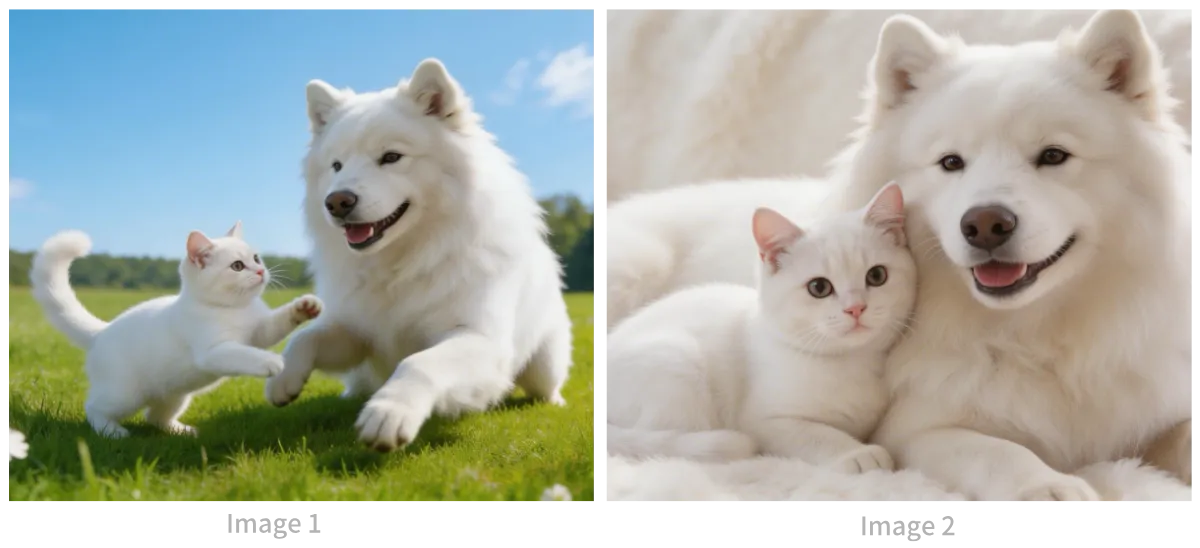
Prompt
Referencing the cat and dog in the images: in a cozy apartment, the dog lies eating from its bowl; the cat walks over and taps the dog with a paw; the dog stops eating when it sees the cat, and the cat nestles against the dog. Warm color palette.
Multi-element reference
Result
Reference Materials
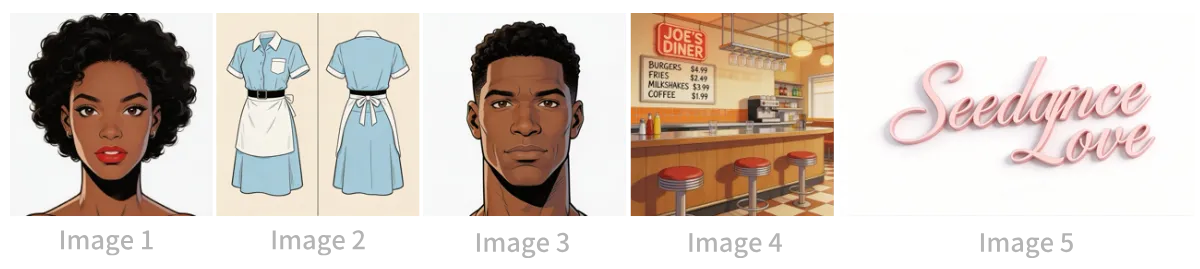
Prompt
The scene is set inside the restaurant from Image 4, bustling with customers. The girl from Image 1, dressed in the outfit from Image 2, is tidying items on the counter. The boy from Image 3 is a customer; he walks up, hoping to ask the girl for her contact info. The logo from Image 5 stays visible in the bottom-right corner of the frame throughout.
Multi-panel storyboard reference
Result
Reference Materials
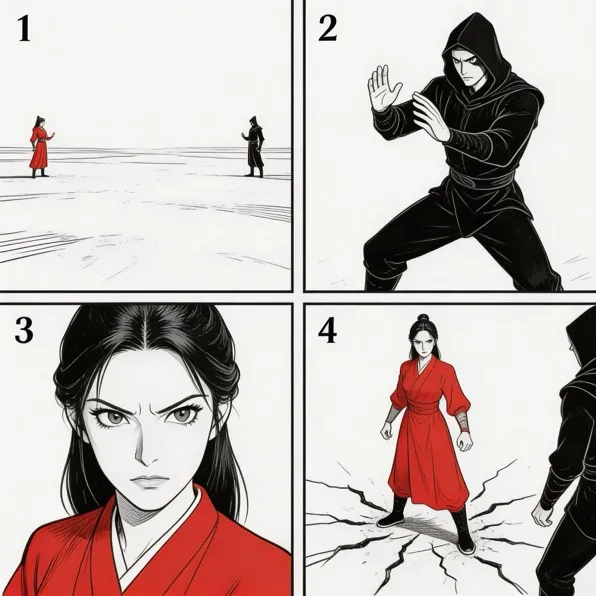
Prompt
Referencing the storyboard in the image, generate an intense fight scene. Each panel's composition appears in order, after which the two fight fiercely.
Storyboard reference
Result
Reference Materials
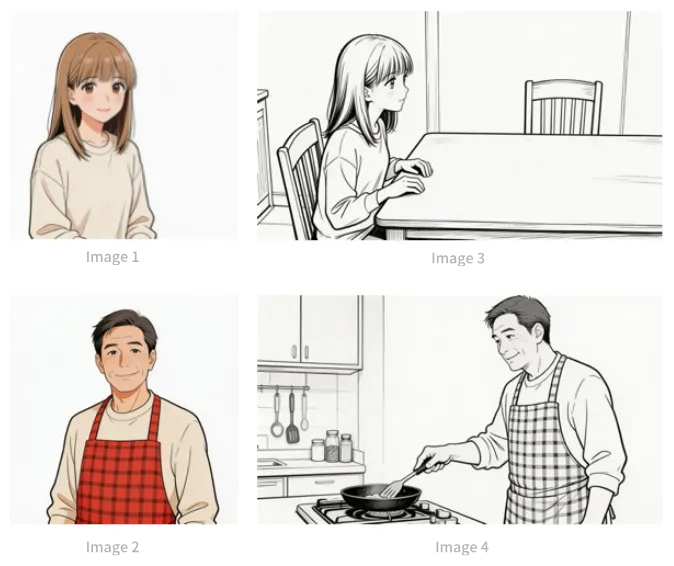
Prompt
Referencing the framing of panel Image 3: a girl waits for her dad to finish cooking and says: “아빠, 배고파요! 밥 다 됐어요?” — her look references Image 1. The camera then pans right, switching to the framing of Image 4; the dad, whose look references Image 2, answers: “거의 다 됐어, 조금만 기다려!” Cut back to a close-up of the daughter's slightly disappointed face as she says: “아직 멀었어요? 맛있는 냄새 나는데…” Then cut to a close-up of the dad, who says: “이제 진짜 금방이야。 "빨리빨리" 하지 말고 손부터 씻고 와!”
Video Reference
Seedance 2.0 supports video reference — just be explicit about what to generate and what to reference.
If the order of videos matters, upload them in order and refer to them precisely in the prompt as Video 1, Video 2, … Video n.
Action Reference
Film & TV
Result
Reference Materials
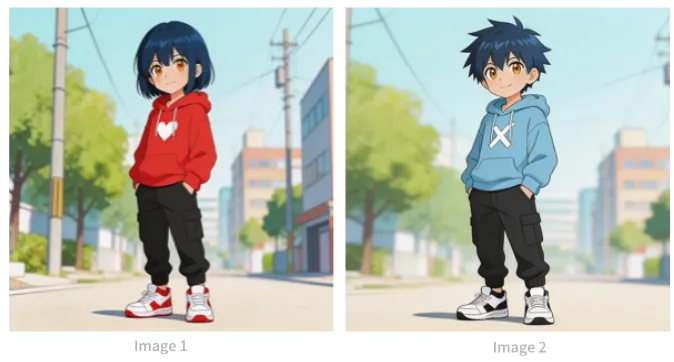
Prompt
Referencing the character movement and shot language of Video 1, generate a fight scene between Image 2 and Image 1 — Image 2 is the person on the left, Image 1 the person on the right. Intense background music.
Marketing
Result
Reference Materials
Prompt
Referencing the horse's galloping form in Video 1, generate a golden steed galloping across grassland, then freeze its magnificent running pose as it turns into a horse-shaped gold pendant.
Camera Movement Reference
Result
Reference Materials
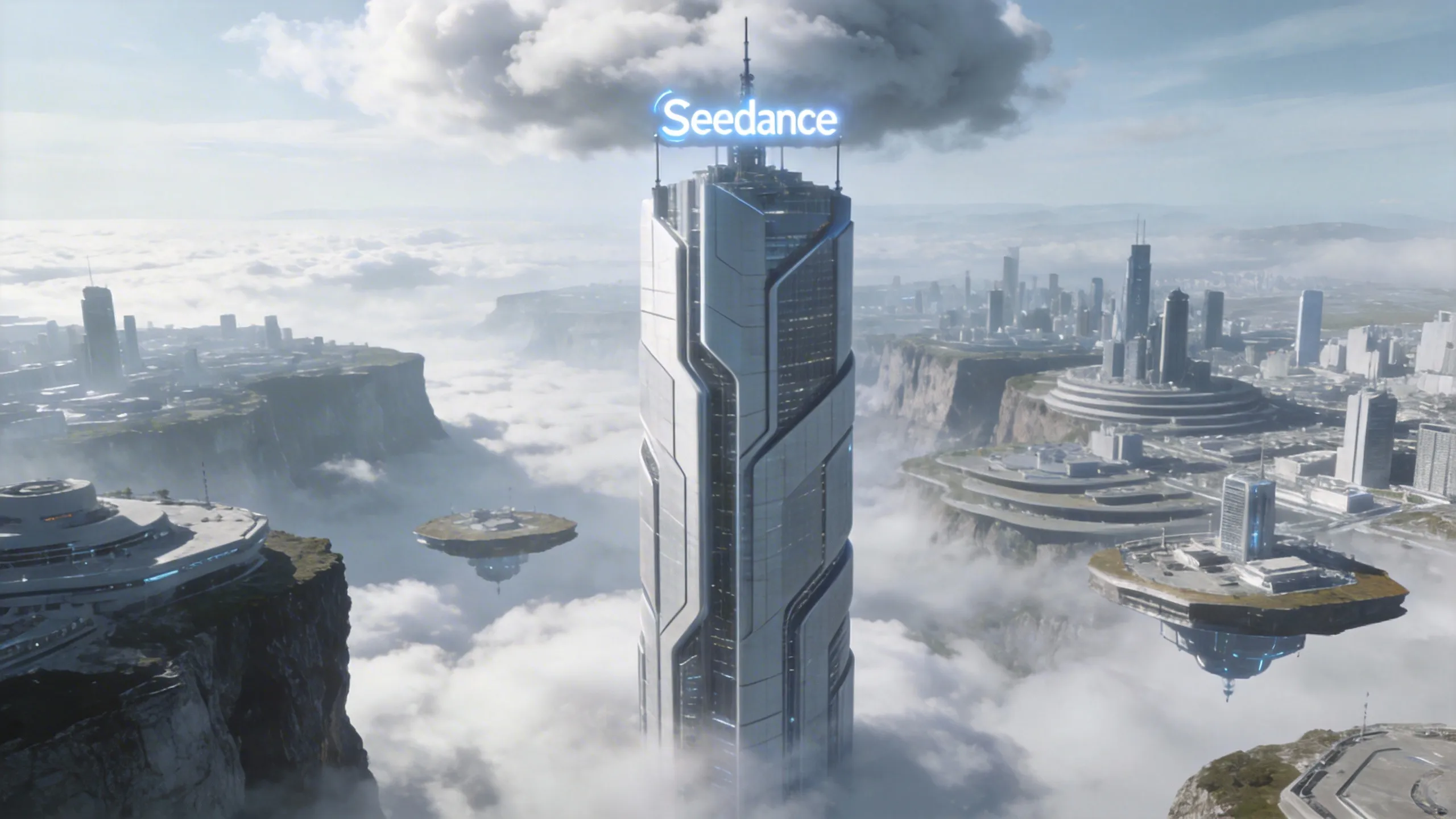
Prompt
Referencing the camera movement of Video 1, make a concept video of a tech park: the high-rise in Image 1 is the visual center, same first-person dive, conveying the futuristic feel of the campus in Image 1.
Effects Reference
Film & TV
Result
Reference Materials
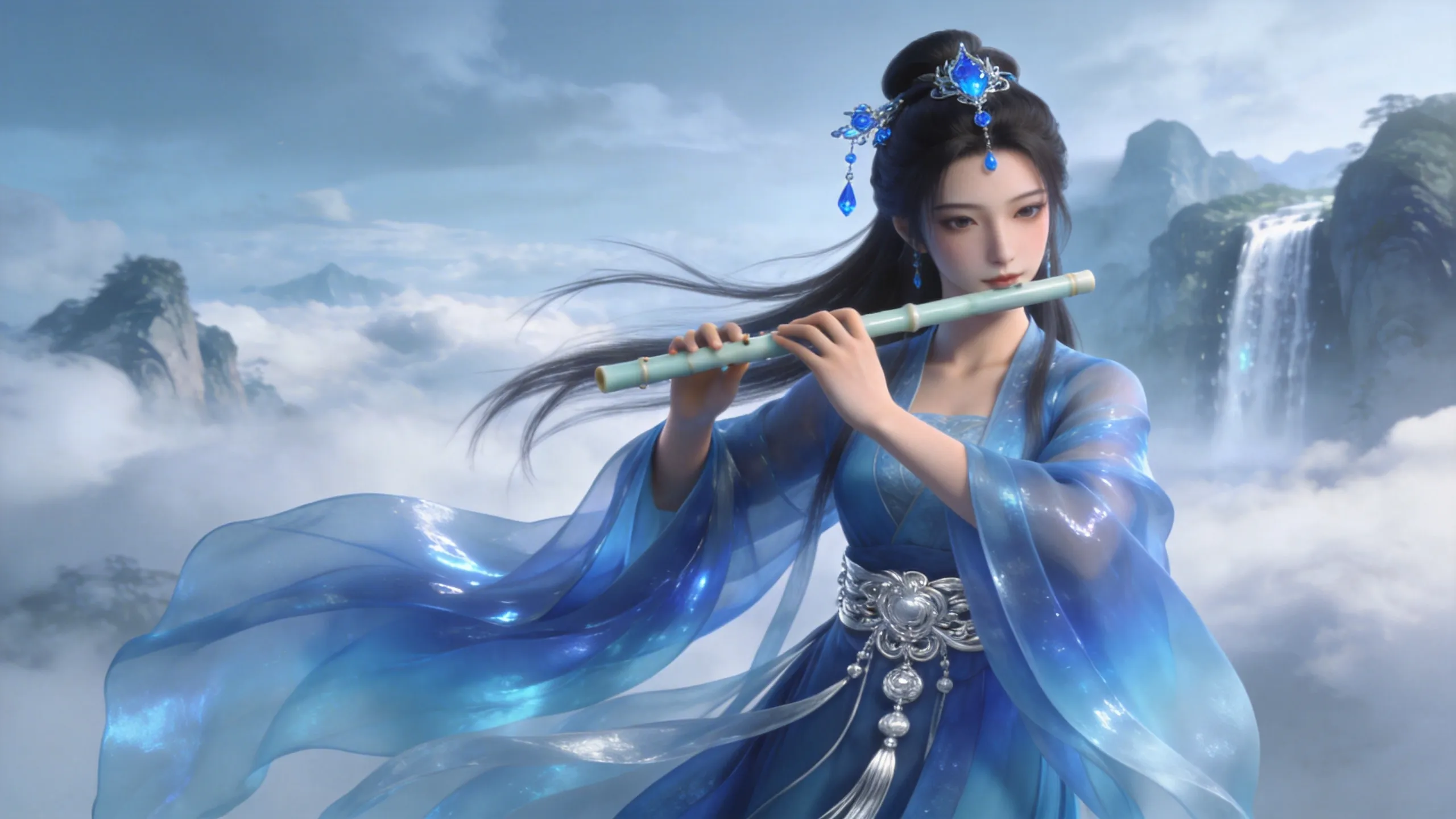
Prompt
Referencing the golden particle effect in Video 1: as the character in Image 2 plays the flute, the same particle effect swirls around them.
Novelty effects
Result
Reference Materials

Prompt
Referencing the effect in Video 1, give the girl in Image 1 the same wings, with an identical wing-growing trajectory.
Video Editing
Seedance 2.0 supports video editing: adding, deleting, or modifying elements; extending a video forward or backward; and track completion.
If the order of videos matters, upload them in order and refer to them precisely in the prompt as Video 1, Video 2, … Video n.
Add / Delete / Modify Elements
Add elements
Result
Reference Materials
Prompt
Add fried chicken, pizza and other snacks to the countertop in Video 1.
Delete elements
Result
Reference Materials
Prompt
Clear the other parts and tools off the desk in Video 1, keeping the desk clean and tidy — only what the two of them hold in their hands remains.
Modify elements
Result
Reference Materials

Prompt
Replace the perfume in Video 1 with the face cream from Image 1, keeping the motion and camera work unchanged.
Video Extension
Note
The model automatically clips the joining segment for compositing — it will not re-generate footage the input video already contains.
Extend backward
Result
Reference Materials
Prompt
Generate what happens after Video 1: the two late-arriving men run toward them, the five finally meet and chat warmly.
Extend forward
Result
Reference Materials
Prompt
Extend Video 1 forward: over-the-shoulder shot of the man in white, who says: “It's not that bad. You're just stressed. Everyone goes through this, you just need to keep going.”
Track Completion
Tip
- Seedance 2.0 accepts at most 3 input videos, with a total length no longer than 15 seconds.
- Generation automatically clips the joining segments of the first and last videos, keeping only what's needed for compositing.
Result
Reference Materials
Prompt
Video 1 — the instant the leaf lands, it kicks up a golden particle effect; a gust of wind blows past — then Video 2.
Advanced Formula
Seedance 2.0 is essentially a multimodal AI director: it reads your text prompt, images, videos, and audio simultaneously, and internally splits them into a spatial layer (what is in the frame) and a temporal layer (how things change over time) to understand and generate footage.
A good prompt is therefore not “ad-copy adjectives” but an engineering-style instruction: who, in what scene, doing what action, with what camera movement, in what order — each delivered to the spatial and temporal layers. The formula:
Advanced prompt formula: Precise subject + Action details + Scene & environment + Lighting & tone + Camera movement + Visual style + Image quality + Constraints
In short: first lock down who is doing what, then establish where and what mood, then tell the model how to shoot it, and finally tighten the result with style, quality, and constraint terms. Each element is broken down below.
1. Define Your Subjects
A single reference image often contains multiple subjects. To reference a specific object precisely, you must define your subjects explicitly. A subject can be a person, a prop, or a scene.
- Recommended pattern: Define the
[subject's core traits]in<Image/Video N>as<Subject N> - Core trait requirements: use 2–3 clear, stable, static traits (clothing, hairstyle, appearance, category) so the subject is uniquely identifiable
- Examples:
- Define the woman in the red dress wearing a straw hat in Image 1 as Subject 1
- Define the woman in the red dress wearing a straw hat in Image 1 as Zhang Hong
Note
- Refer to subjects explicitly every time they appear — do not leave the reference implicit. Two usages are supported:
- For simple scenes without predefined subjects, write
<Subject N>@<Image N>each time the subject appears, to stress the binding between subject and asset. Example: Zhang San@Image 1. - For scenes with predefined subjects, keep using the same label every time. Example: define the tall man in Video 1 as the Cop and the shorter man as the Thief, then keep referring to them as Cop and Thief throughout.
- Keep descriptions concise. Avoid redundancy and semantic conflicts (such as contradictory traits for the same subject).
- Prefer expressing spatial relationships through reference images instead of complex text descriptions.
2. Use Shot-by-Shot Sequencing
The model's internal representation decouples space and time. So for a complex video, the ideal prompt shape is a timeline of shots: split the video into a few shots and describe each one dynamically, in the order events happen — who + where + doing what + how the camera moves.
Practical advice: write a simple “Shot 1 / Shot 2 / Shot 3” breakdown for the video, then merge it into the full prompt.
- Weak example: “A man runs nervously through the streets; the frame feels very cinematic.”
- Strong example:
- Shot 1: Side view of a street alley; the man slowly starts to run, with a sense of urgent breathing.
- Shot 2: The man crashes into a fruit stall; the camera whips quickly and lands on a close-up of his terrified face.
- Shot 3: The man vaults over a low wall and disappears; the camera slowly pulls back and holds on the empty street.
Specific rules
- Use markers like
Shot 1,Shot 2,Shot 3and organize content in the order events happen (primary first). Don't force a duration for each segment — let the model pace the story naturally.
Tip
The model's support for precise timing (e.g. “0–3 seconds”) is unstable. Forcing exact durations can produce abnormal results.
Each shot is best organized in this order:
- Camera movement or transition: e.g. “wide shot slowly pushing in”, “locked-off camera”, “cut to…”.
- Subject action and expression: the key actions and expression changes of the main character / object.
- Position or spatial change: the scene, position, or spatial relationships of the subject.
- Audio information: the sound effects, dialogue, or background music for that shot.
3. Action Description
- Specific body parts + quantified intensity — Describe actions down to hands, legs, head, shoulders and back, and add amplitude, speed, and force. Examples: slowly raises a hand, quickly turns the head, kicks off the ground hard, lowers the head slightly.
- Prefer slow, gentle, continuous small movements — Favor slow, soft, connected micro-actions; avoid sprinting, big jumps, violent rolls and other high-burst, large-dynamic moves. Examples: walking slowly, gently raising a hand, slightly lowering the head, sitting down in one smooth motion.
- Describe transitions between actions — Spell out the momentum and hand-off between consecutive actions so movement stays coherent. Examples: uses the momentum of the turn to raise a hand, transitions naturally from stillness into raising a hand.
- Externalize emotion into physical detail — Express emotion through concrete body detail instead of abstract words like “very sad” or “furious”. See the table below:
| Abstract emotion | Externalized actions & details |
|---|---|
| Sadness | Head lowered, shoulders trembling slightly, eyes reddening, fingers unconsciously clutching the hem of the clothes, tears welling up without falling |
| Joy | Corners of the mouth rising uncontrollably, brows and eyes relaxing, steps turning light, unconsciously humming a tune, unable to resist spinning in place |
| Nervousness / anxiety | Frequently checking the watch, fingers tapping the table nonstop, rapid breathing, darting eyes, unconsciously biting nails |
| Anger | Fists clenched, jawline tight, chest heaving violently, eyes sharp as blades, words forced out through gritted teeth |
| Relief | A long exhale, tense shoulders fully relaxing, a faint long-lost smile appearing, gaze lifting toward the distance |
4. Camera Movement
The model understands camera vocabulary very well — just use standard cinematography terms directly, e.g. “medium shot, close-up, wide shot, slow push-in, smooth lateral tracking, locked-off camera”.
Note
Specify only one camera move per shot. Asking for push, pull, pan, and track at the same time increases frame instability.
5. Quality, Style & Constraints
Quality, style, and constraint terms are key to controlling the output. They define the creative boundary for the model, unify image quality and art direction, and suppress visual defects and random drift — a necessary setup for stable, compliant results.
1. Image quality — defines clarity, detail texture, and lighting feel, raising the baseline quality of the output. Example: high definition, rich detail, cinematic texture, natural color, soft lighting.
2. Style — sets the overall art direction and visual tone, unifying the artistic atmosphere. Example: cyberpunk cold blue-purple palette, vintage film, fresh Japanese-style tones.
3. Constraints — extremely important. Constraints effectively suppress visual defects, deformities, and unreasonable elements, bounding generation and improving stability. Common templates:
- Avoid subtitles: “keep the video free of subtitles”, “avoid generating any text or subtitles”
- Avoid logos: “do not generate logos”
- Avoid watermarks: “do not generate watermarks”
6. Worked Examples
Two examples showing how the advanced formula and its elements come together in a real prompt.
Assets:
- @Image 1: half-body photo of the lead girl
- @Image 2: dorm scene reference image
- @Video 1: indoor dialogue camera reference (medium-shot push/pull or slight pan)
- @Audio 1: indoor ambience or light music
Prompt
The girl in @Image 1 is the lead; @Image 2 is the dorm scene style reference; camera work references @Video 1. Shot 1: At dusk, the girl @Image 1 walks briskly to the dorm door @Image 2. Steady medium-shot follow; warm yellow daylight spills into the corridor through the window. She pauses at the door, takes a deep breath, looking slightly nervous. Shot 2: The girl @Image 1 pushes the door open and walks in. Cut to an indoor medium shot: her roommates look up from sorting books, and one asks with a smile {How did the exam go? Did you pass?}. The camera cuts slowly between half-body close-ups of the group. Shot 3: The girl @Image 1 first lowers her head with a dejected look — camera moves to her close-up — then she looks up, unable to hold back a grin, laughs out loud and says {Fooled you all}. The roommates chase her around playfully; the camera slowly pulls back and holds on a wide shot of the laughing dorm room. Throughout: high-definition documentary-film look, warm tones, soft lighting; faces stable without deformation, motion natural and fluid, no stutter or flicker; ambience blends naturally with @Audio 1.
Practical Tips
Text Generation
Seedance 2.0 can generate common on-screen text. The model automatically matches a suitable style and color to the context, and also lets you specify the text's color, style, entrance animation, timing, and position in the prompt. Prefer common characters and avoid rare characters and special symbols for the best rendering. Supported scenarios currently include slogans, subtitles, and speech bubbles — see the Text Generation examples above for concrete patterns.
Extending vs. Stitching
- Continuous long take (video extension): best for dialogue-driven “quiet” scenes inside a single location — long conversations, emotional build-up, movement along a single path — for an immersive one-take feel.
- Scene / action turns (segmented stitching): best for plot turns or complex, fast “action” scenes — chases, fights, montages. Generate segments independently and edit them together to preserve pacing and visual impact.
Real projects usually combine both: extend to get a coherent conversation first, then stitch in cutaways or transition shots — keeping immersion while varying the rhythm.
Asset Configuration Strategy
Think of your assets as playing four functional roles:
- Character anchor: locks the character's appearance
- Scene tone-setter: locks the environment and style
- Camera reference: locks the shot language and action rhythm
- Rhythm & mood: uses audio to control emotion and voice timbre
Recommended setup (4–5 assets total): 1–2 character images (face close-up / full body) + 1 scene image + 1 camera-reference video + 1 audio clip.
Tip
Don't max out the asset limit. Too many assets make it hard for the model to prioritize features, easily causing style conflicts, blurry subject identification, and results that drift from expectations.
Usage Guidelines
Language Consistency
Keep dialogue in a single language. Avoid mixing languages in the same line (proper nouns excepted).
Special Characters
Using symbols consistently helps the model tell different kinds of information apart:
| Information type | Symbol | Example |
|---|---|---|
| Music | () | (Fast-paced rock music plays in the background) |
| Sound effects | <> | <A dog barks in the distance> |
| Dialogue | {} | {Hello, world}. For dialogue in a less common language (not Chinese/English), tag the language, e.g.: says in Japanese {こんにちは}. |
| Subtitles / captions | 【】 | 【Chapter 1: Departure】 |
FAQ
Character ID Drift
Symptom — The generated character doesn't match the reference image, or the face changes mid-video (ID drift), sometimes tripping review filters for resembling celebrities.
Root cause — The face reference isn't effective enough:
- Mixed reference images: the face reference is merged into one image together with full-body pose shots, outfit references, or detail shots.
- Face too small in frame: in a mixed reference image the face occupies too small a share of the image, so the model under-weights facial features and gets distracted by background or other elements.
Solution — Strengthen the independence and weight of the face reference:
- Prepare a dedicated face close-up: besides the full-body shot, add an image containing only the character's head (a headshot — face only, neutral expression is best, minimal shoulders/background).
- Define the subject clearly in the prompt: “Subject 1's facial features reference Image 1 (headshot); makeup and styling reference Image 2 (full-body shot)”.
- Put important assets first: the more precisely an asset needs to be referenced, the earlier it should appear in the prompt.
Note
Use a headshot + full-body shot for character reference. Multi-view sheets are not recommended — they contain the same person from several angles, which the model tends to read as multiple different subjects, making ID drift worse.
Before
The character's face swaps mid-video, resembling a celebrity
After
The face stays consistent with the reference image throughout
Unwanted Subtitles
Symptom — The prompt never asked for subtitles, but the generated video contains them.
Tip
There is currently no way to prevent subtitles 100% of the time — the methods below lower the probability and raise your hit rate across attempts.
- Add explicit constraints to the prompt: “keep the video free of subtitles”, “avoid generating any text or subtitles”.
- If text in your reference images/videos isn't essential, remove it first (for example with Seedream / Seedance image or video editing), then use the text-free asset as input.
- Where your use case allows, generate in landscape first (subtitles appear noticeably less often than in portrait), then crop to portrait in an editor.
Logos / Watermarks Appear
Symptom — The prompt never mentioned watermarks, but the generated video contains logos or watermarks from other video platforms.
Solution — Add explicit constraints to the prompt: “do not generate watermarks”, “do not generate logos”.
Style Drift
Symptom — You want 2D or 3D anime output, but the reference image is fairly photorealistic and the prompt doesn't stress the style — so the result can drift into a live-action look.
Solution — Add explicit style constraints such as “2D Japanese anime style” or “3D Chinese-style animation”. For tighter control, convert the reference image into the target style first, then generate the video from it.
Before
Xianxia style drifts into live-action
After
Holds the 3D Chinese-animation CG xianxia style
Jump at Extension Seams
Symptom — After generating an extension and joining it to the original, the seam can show a visible jump or a step backwards in content.
Solution — For now, patch it in post by aligning keyframes (a root fix will come with model iteration):
- Import the clips to be joined into CapCut or another editor.
- At the first seam, trim 6 frames off the end of the earlier clip.
- Also trim 1 frame off the start of the later clip.
- Repeat for every join point.
- Export and check that the joined video plays smoothly.
Tip
Even with frames aligned, slight jumps can remain. When generating a continuation, end the clip at a scene-cut moment, and let the next clip start from the new scene after the cut.
Before
Visible frame jumps / content regression at the seams (5s, 20s)
After
Much smoother seams
The “Twin” Problem
Symptom — In scenes with many characters, especially when a character turnaround (three-view) sheet is used as reference, the same frame can contain two identical copies of one character.
Root cause:
- Character subjects aren't clearly defined in the prompt, so the model can't precisely tell the roles apart.
- Turnaround / multi-view sheets confuse character recognition, producing duplicated look-alike characters.
Tip
There is currently no way to prevent twins 100% of the time — the methods below lower the probability and raise your hit rate across attempts.
- Bind each character to its reference: define every character clearly and note which image it maps to, keeping the format consistent. Example: Zhang San (from Image 1) throws the green passbook at the standing Li Si (from Image 2).
- Add a global constraint at the end of the prompt: “Throughout the video, never show characters with identical appearance, clothing, and accessories; no clones or twin effects; keep only a single instance of each character per frame; no duplicated characters.”
- Optimize reference assets: prefer single-person photos; avoid three-view / multi-view sheets.
- Trim the prompt: don't paste a full script as the prompt — redundant copy confuses the model. Cut irrelevant text and keep instructions focused.
Before
A “twin” appears at second 8
After
Quality Loss When Extending
Symptom — Using a generated video as input for further extension degrades image quality. Repeated extensions stack the degradation, with mottled color patches appearing especially on faces.
Solution — Mitigations for now (a root fix will come with model iteration):
- Convert the original video to a white clay-render with Seedance 2.0 first, then use that as the extension input. Reference prompt: “Convert the video into a white 3D model: all characters become pure-white 3D models with no color, no texture, no shadows, pure white background, stable structure, fluid motion.”
- Prefer high-resolution images as reference assets.
- Limit how many times you chain extensions; avoid stacking many rounds.
Before
Extending the model's output directly
After
Converting the output to a white clay-render before extending
Effects Don't Match Expectations
Symptom — Describing a specific visual effect in text can miss. Example: the prompt asks for “the number 2999 entering as a countdown animation”, but the generated digits scroll with chaotic jumps instead of a proper countdown.
Solution — Define the effect with a reference video: feed a clip of the target effect so the model precisely understands its form and motion logic. Example: “The number 2999 enters the way it does in Video 1.”
Before
Reference Materials
The digit-scrolling effect jumps around chaotically
After
With the correct digit-scroll effect video added as input, the result matches expectations
Too Many Reference Characters
Symptom — With more than 4 reference characters, output stability drops: the video may show the wrong number of people (missing or extra) or duplicated characters.
Solution — Mitigations for now (a root fix will come with model iteration):
- Generate group images in steps: split the characters into groups of at most 4 per image. For example, 6 characters can be split into 2 groups of 3, each generating one image.
- Then image-to-video: use those grouped images as reference assets to generate the final video.
Before
8 reference characters in → 9 people out
After
8 characters composed into 2 images first, then image-to-video
Voice Timbre Doesn't Match the Reference
Symptom — When using a reference audio clip to set the voice, the generated video's voice can deviate noticeably from the reference timbre.
Solution:
- Add detailed voice-timbre descriptions to the prompt, e.g. “speaks in the low, warm, slightly gravelly middle-aged male voice of @Audio 1”.
- Keep the dialogue's tone and phrasing style close to the reference audio — it improves timbre fidelity and stability.
Before
Reference Materials
Voice doesn't match the input audio
After
With timbre traits described in the prompt, the match improves clearly